Simulator walkthrough
About BOOTHROOMStart by loading a comparison .brm and adjusting table and block dimensions. This walkthrough describes the current BOOTHROOM save and load features.
Build your first layout with an example
1. Save existing work first
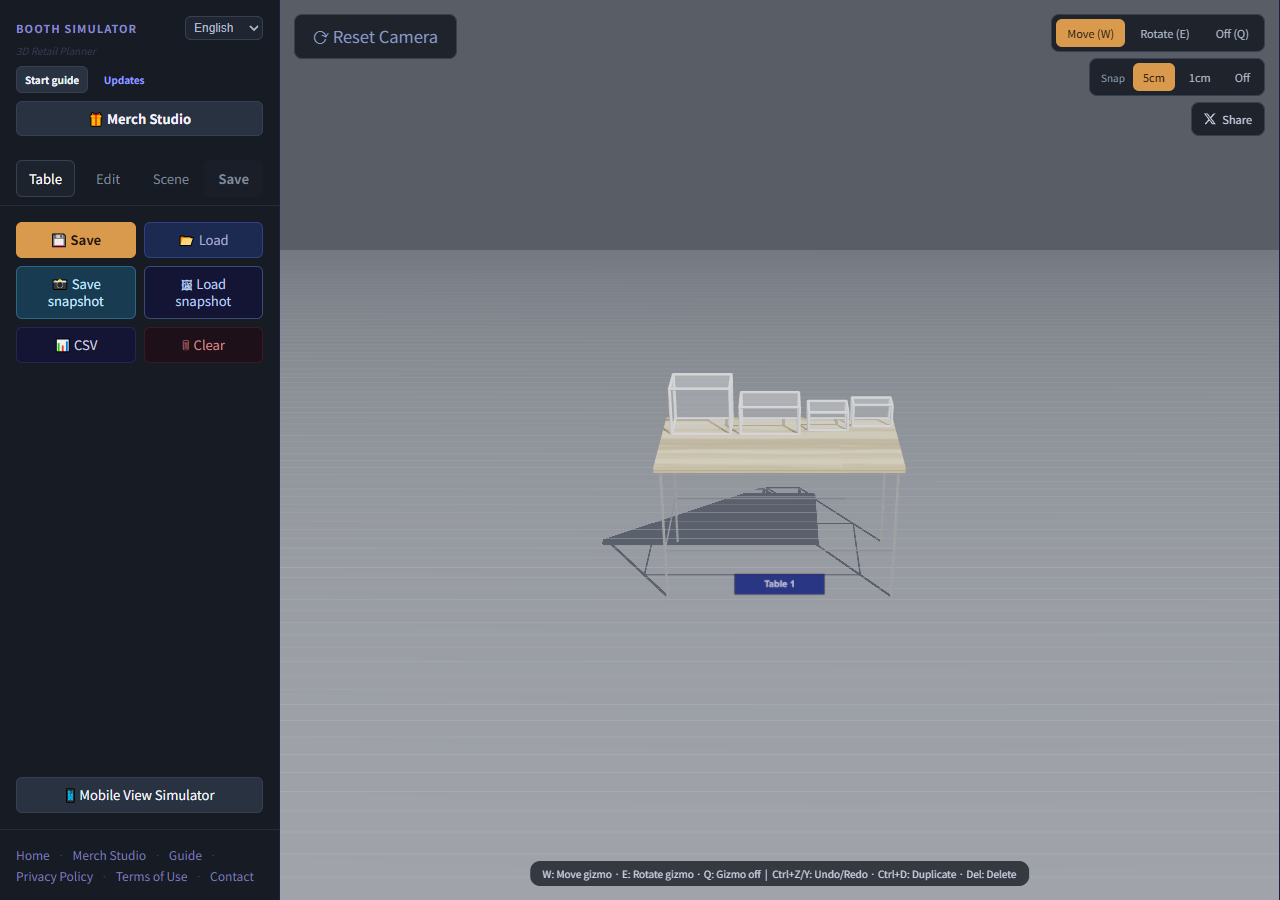
Download your current work as .brm with Save. Loading replaces the layout, so do not rely only on automatic saving. Download A, B or C from the comparison guide.
2. Load and check dimensions
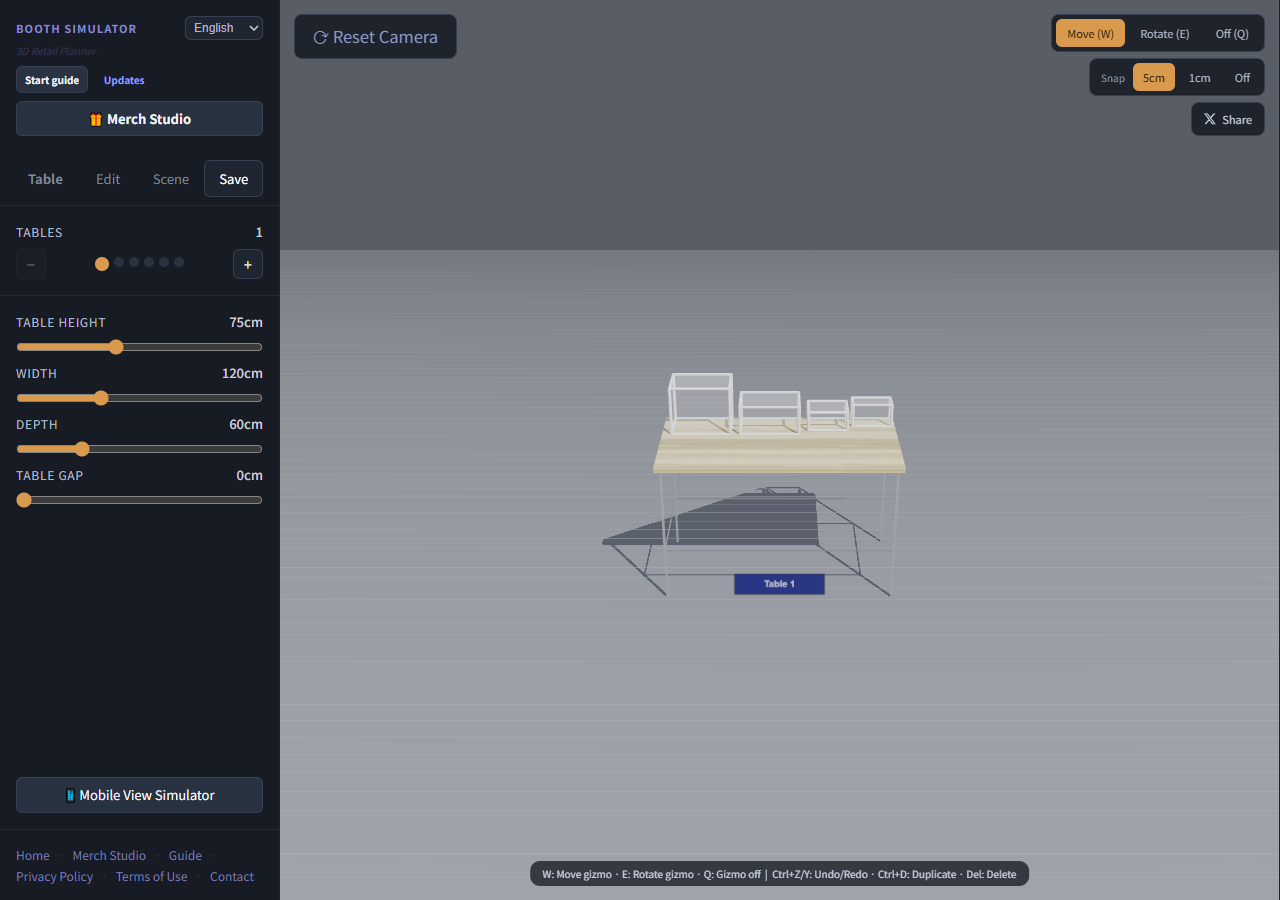
Choose the .brm with Load. The table is 120×60cm, 75cm high, with four blocks. Select a block to inspect dimensions and adjust to organizer specifications. Numbers 1–4 match the diagrams.
3. Move and compare views
Select and move a block. Check overlaps and boundaries from above, and obstructions from the front. This is a space inspection tool; it does not automatically assess safety, actual visitor sightlines or aisle rules.
4. Keep files and restore
Save each version under a distinct filename. Snapshot Save creates a PNG with supported layout data; restore with Snapshot Load. It differs from an ordinary screenshot. Clearing browser data removes local saves, so keep important files separately.
Measurements and organizer rules take priority over the screen. Learn with examples, use your actual dimensions, and keep important work as .brm or supported PNG snapshots.
This guide offers planning suggestions. Examples use hypothetical conditions, not field trials or evidence of increased sales. Follow the organizer’s current dimensions, height limits, wall attachment and aisle rules.